
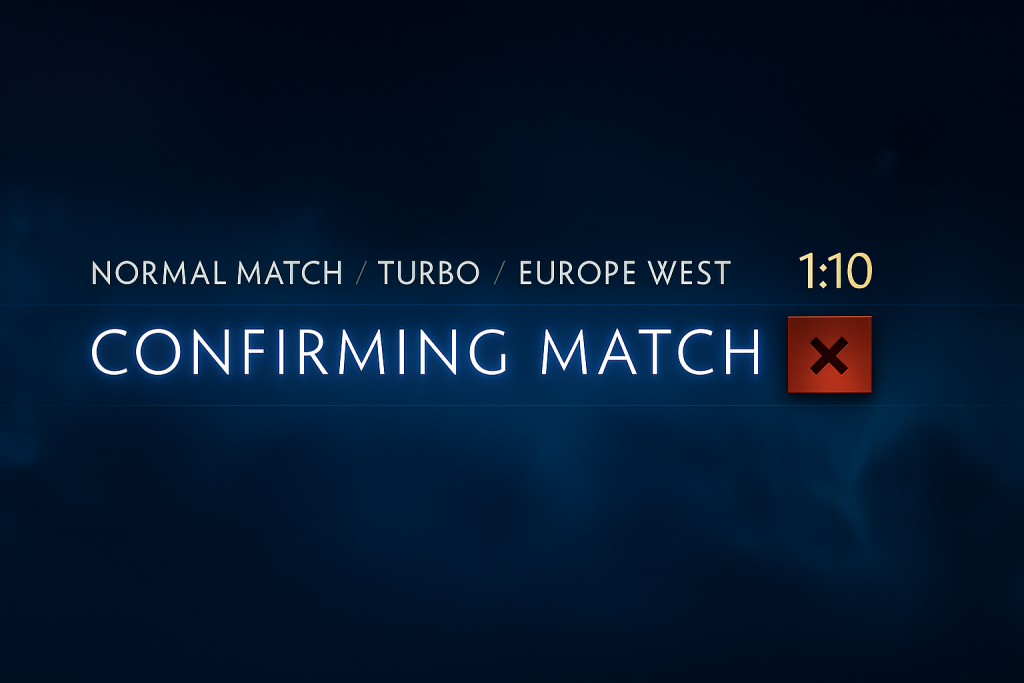
If you’re stuck in Dota 2’s matchmaking screen with the message “Confirming Match” but nothing happens, you’re not alone. This Dota 2 Confirming Match Bug has been frustrating players worldwide—either the accept button doesn’t appear, or clicking it does nothing, causing you to miss games and sometimes incur matchmaking penalties.
This article offers practical solutions to fix the issue, whether it’s caused by your client, Steam, network, or system configuration. Follow the steps below to troubleshoot and resolve the problem.
Step 1: Restart the Dota 2 Client
It might sound basic, but restarting the client often resolves temporary matchmaking glitches.
- Fully close the Dota 2 application.
- Open Task Manager (Ctrl + Shift + Esc) and ensure dota2.exe is not still running in the background.
- Relaunch Dota 2 and try queuing again.
Tip: Restarting helps clear memory leaks and resets the match acceptance logic.
Step 2: Verify Game Files via Steam
Corrupted or missing game files can cause the UI and matchmaking functions to behave incorrectly.
To verify your Dota 2 game files:
- Open Steam.
- Go to your Library.
- Right-click on Dota 2 > Properties.
- Navigate to the Installed Files tab.
- Click “Verify integrity of game files…”.
Steam will scan your installation and re-download any missing or corrupted files.
Step 3: Restart Steam Completely
Sometimes, the issue is on Steam’s end and not Dota 2 specifically.
- Fully exit Steam (right-click on the tray icon > Exit).
- Again, open Task Manager and ensure steam.exe is not running.
- Restart Steam and log in again.
This helps with temporary sync or connection issues between Steam and Dota 2.
Step 4: Check Your Internet Connection
A poor or unstable internet connection may prevent you from communicating with Dota 2’s matchmaking servers.
Try the following:
- Restart your router or modem.
- Switch from Wi-Fi to Ethernet, if possible.
- Avoid using VPNs or proxy services.
- Test your internet speed to ensure latency and packet loss are not present.
Even momentary connection loss during the matchmaking phase can prevent the game from properly registering your confirmation.
Step 5: Change Your Matchmaking Server Region
Dota 2’s matchmaking servers can have outages or delays in specific regions.
To switch regions:
- Open Dota 2.
- Click the gear icon (Settings) in the top-left.
- Go to the “Network” tab.
- Under Matchmaking Server, deselect “Auto” and manually select a different region with low ping.
- Save and restart the game.
This forces the client to use a different data center which might not be affected by the issue.
Step 6: Disable Background Applications
Some applications can interfere with Dota 2 or Steam, especially overlays or performance boosters.
Disable or close:
- Discord overlay
- GeForce Experience in-game overlay
- MSI Afterburner or RivaTuner
- Antivirus programs with active real-time scanning
- Any third-party optimization tools
To test, perform a clean boot of your system and launch only Steam and Dota 2.
Step 7: Clear Dota 2’s Launch Options
Incorrect or outdated launch parameters can affect client performance.
To reset launch options:
- Open Steam > Library.
- Right-click Dota 2 > Properties.
- Under the General tab, remove anything written in the Launch Options box.
Restart the game afterward and try queuing again.
Step 8: Update Graphics Drivers
Though it may seem unrelated, outdated GPU drivers can cause UI bugs or responsiveness issues, which might prevent the accept button from functioning correctly.
- For NVIDIA users: Use the GeForce Experience tool or download the latest driver manually from NVIDIA’s website.
- For AMD users: Use AMD Software: Adrenalin Edition or download drivers from AMD’s official site.
- After updating, restart your PC and try again.
Step 9: Reinstall Dota 2 (Last Resort)
If none of the above solutions work, a clean reinstall may be necessary:
- Uninstall Dota 2 via Steam.
- Delete the Dota 2 folder manually (typically in Steam\steamapps\common\Dota 2 Beta) to remove leftover files.
- Reboot your PC.
- Reinstall Dota 2 through Steam.
This step ensures all corrupted or outdated files are cleared.
Additional Considerations
Matchmaking Penalties:
If you’ve missed multiple confirmations due to this bug, Dota 2 may place you in low priority or delay your next matchmaking attempts. Unfortunately, there’s no official way to remove penalties manually, but fixing the root issue prevents future problems.
Valve Response:
In recent years, Valve has addressed similar matchmaking bugs via updates. Always keep your game up to date and check the Dota 2 blog or patch notes if a new bug has been acknowledged.
Temporary Workaround:
If you’re mid-session and the bug reappears, some users have reported success by restarting Dota 2 and Steam simultaneously, then immediately re-queuing. This doesn’t fix the root issue but can help in the short term.
The “Confirming Match” bug in Dota 2 is frustrating, but in most cases, it’s fixable with a few simple steps. Whether it’s network issues, corrupted files, or temporary Steam glitches, this guide covers all likely causes and proven solutions.
If the issue persists even after trying all fixes, it’s worth checking community forums for recent reports or waiting for a patch if the problem is widespread.
Remember, consistent performance in Dota 2 starts not just with your gameplay, but with the stability of your system. Stay updated, stay clean, and get back into the game.

